
Create a Usage Notification
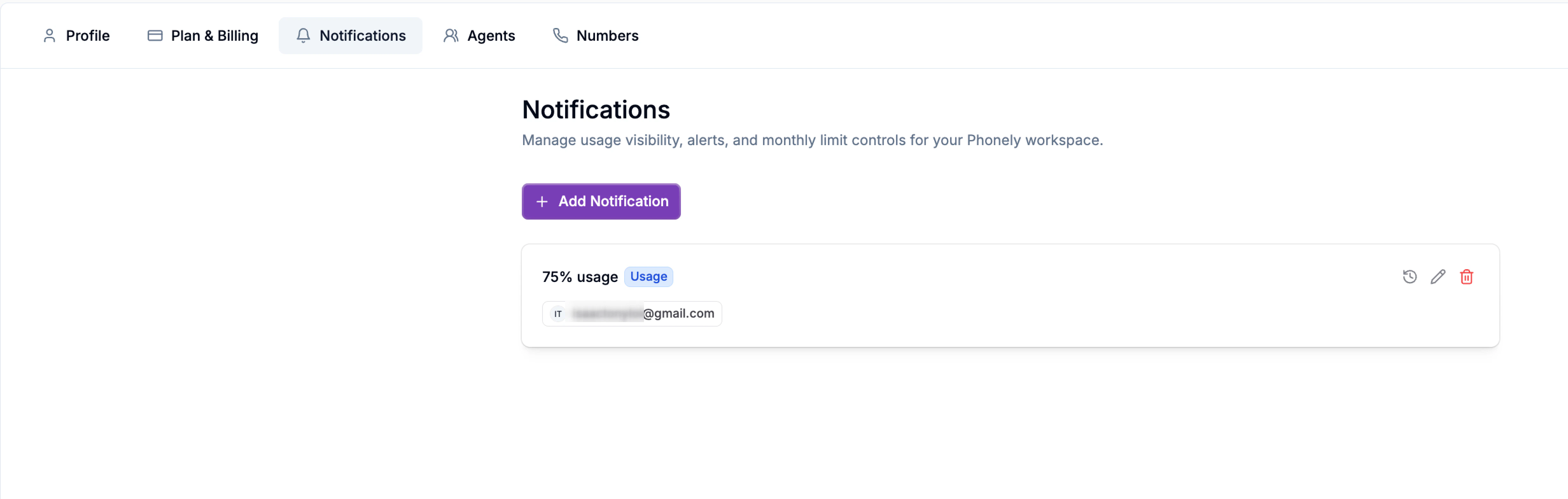
To access usage notifications:
If no notifications are configured yet, Phonely will prompt you to add one.
Click Add Notification to begin setting up a new alert.
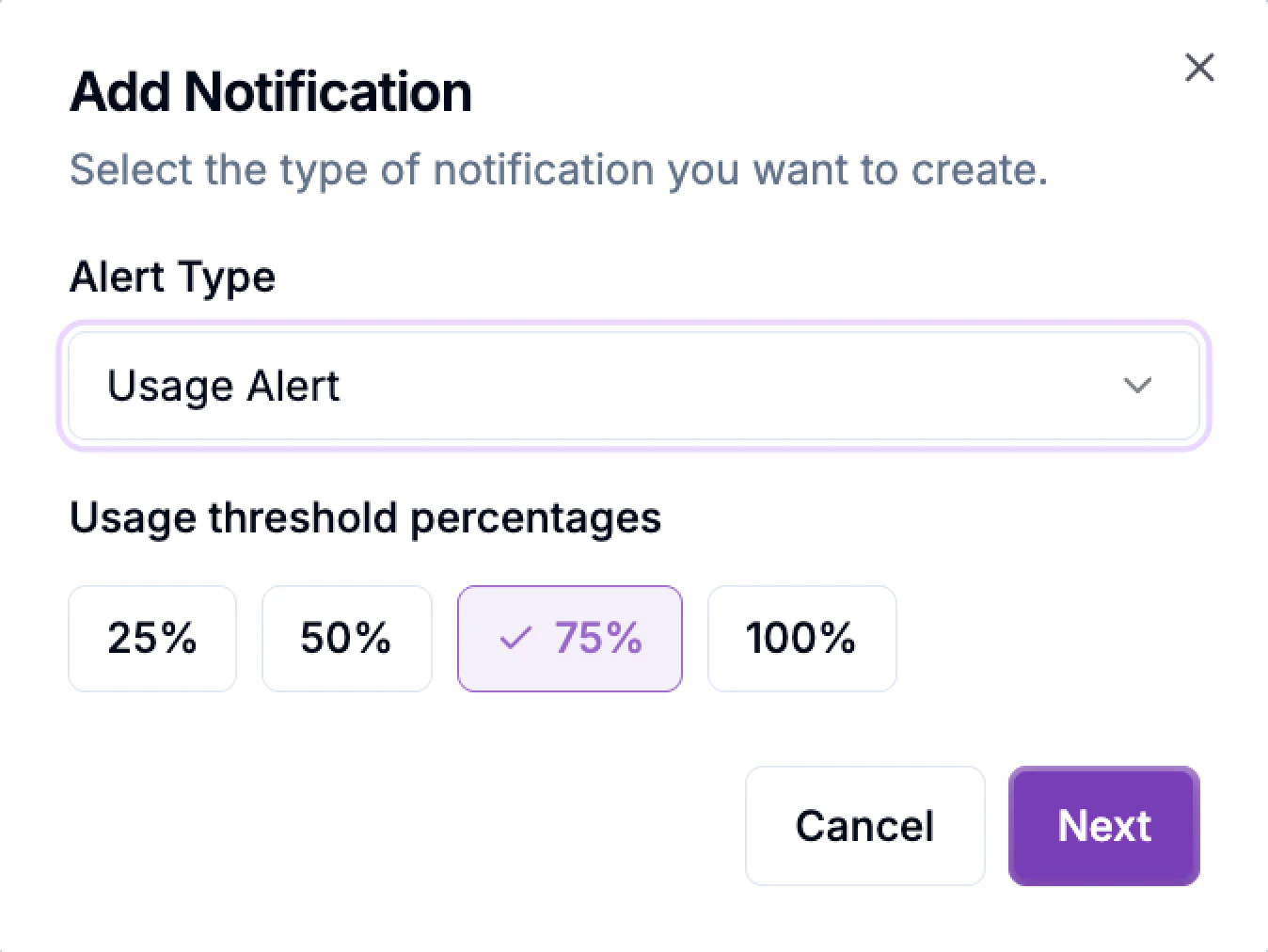
In the first step, you’ll choose the alert type. Select usage alert, which is designed specifically for monitoring monthly usage limits.
Next, choose one or more usage threshold percentages. These represent the point at which the alert will trigger. Choices include 25%, 50%, 75%, or 100%, depending on how early you want to be notified.
Add Notification Recipients
In the final step, you’ll specify who should receive the alert. Enter one or more email addresses for the people responsible for monitoring usage, this might include administrators, billing contacts, or operations managers. Each email added will receive a notification when the selected threshold is reached. When finished, click Create Notification to activate the alert. Your notification becomes effective immediately and applies to the current and future billing cycles.Manage Usage Notifications
Once a usage notification is created, you can manage it at any time from the notifications page. This includes updating thresholds or recipients, removing notifications you no longer need, and reviewing when alerts were triggered.View Existing Notifications
All configured usage notifications appear as cards on the Notifications page. Each card shows: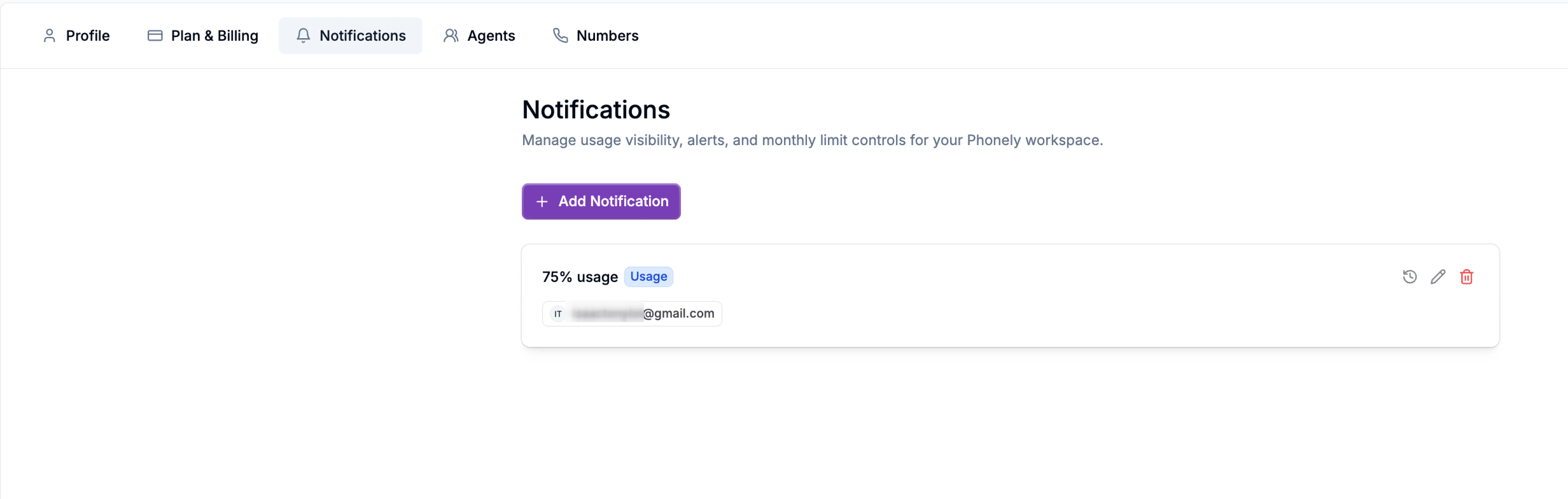
Edit a Notification
You can update an existing notification if your usage strategy or recipients change. To edit a notification, click the edit (pencil) icon on the notification card.Delete a Notification
If a notification is no longer needed, you can remove it entirely. Click the delete (trash) icon on the notification card and confirm the action.View Notification History
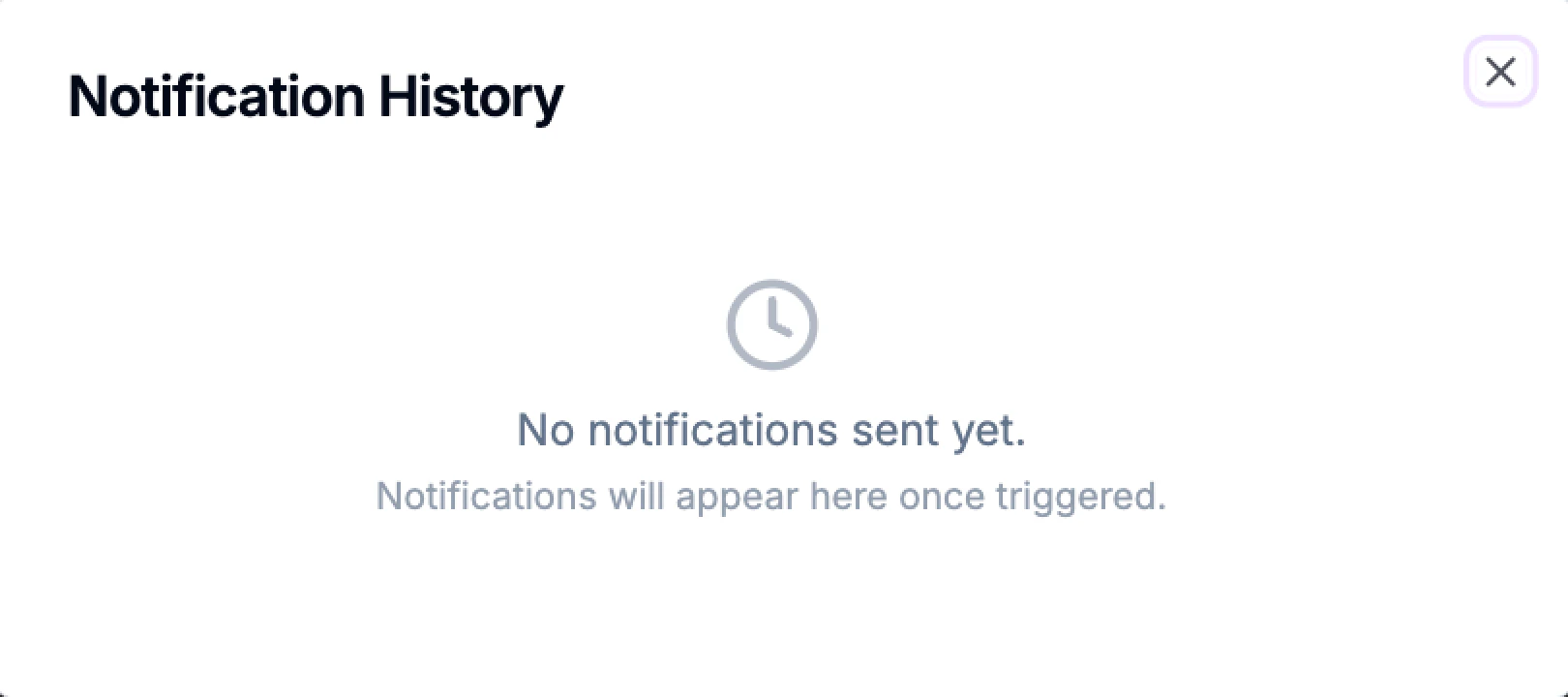
Phonely keeps a record of when usage notifications are triggered, making it easy to audit alerts or confirm delivery. To view this history, click the clock icon on a notification card. A Notification History panel opens, showing all alerts that have been sent for that notification.