
Why Post-Call Outcomes Matter
When building a voice AI agent, the goal is not just to complete conversations, but to achieve meaningful outcomes. For example, your agent might:- Book an appointment
- Qualify a lead
- Transfer a caller to a human
- Collect information for a follow-up
- Support a customer inquiry
What You Can Track with Post-Call Outcomes
Each call can be updated with outcome data that helps you measure conversions, revenue, and performance across your business.| Outcome Field | Description | Examples |
|---|---|---|
| Custom Call Outcome | A label that describes the final result of the call. This defines what ultimately happened after the conversation. | Sold, No Sale, Appointment Completed, Appointment No-Show, Qualified Lead, Follow-Up Required, Escalated Successfully |
| Outcome Value | The monetary value associated with the call outcome. This represents the revenue or business value generated from the call. | custom_call_outcome_value: 299 |
| Custom Metadata | Additional structured data attached to the call outcome. This can include campaign information, sales rep identifiers, product details, or any business-specific attributes. | campaign name, rep ID, notes |
- Revenue generated per call
- Conversion rates
- Campaign performance
- Agent effectiveness
- Lead quality etc.
How Calls Are Identified
Phonely lets you update the post-call outcome fields for a call using either of the following identifiers: Call ID: Use this endpoint when you want to update the outcome for a specific call.preference parameter determines whether the update applies to the first or last call associated with that number.
Option 1: Update by Call ID
Updates one exact call using its unique call ID.Option 2: Update by Phone Number (Last Touch - default)
Updates a call using the caller’s phone number (E.164 format), and automatically picks the most recent call from that number.Phone numbers must be in E.164 format.Correct: +14155551234Incorrect: 4155551234
- “Customer bought later”
- “Appointment completed”
- “Lead converted after follow-up”
Option 3: Update by Phone Number (First Touch)
Updates a call using the caller’s phone number, but selects the earliest (first) call from that number. Common cases:- Tracking conversions back to the first inbound call
- Measuring campaign performance where the first interaction matters
?preference=first
Example
Option 4: Partial Update (Only Outcome)
Updates only one field without sending a full payload. This is useful when:- You only know the final outcome label
- You only want to update outcomes
- If you update by call_id → no attribution
- If you update by phone number → attribution rules apply (first/last touch)
Full Lifecycle Example
Example scenario: AI agent books an appointment.Viewing Post-Call Outcomes in Analytics
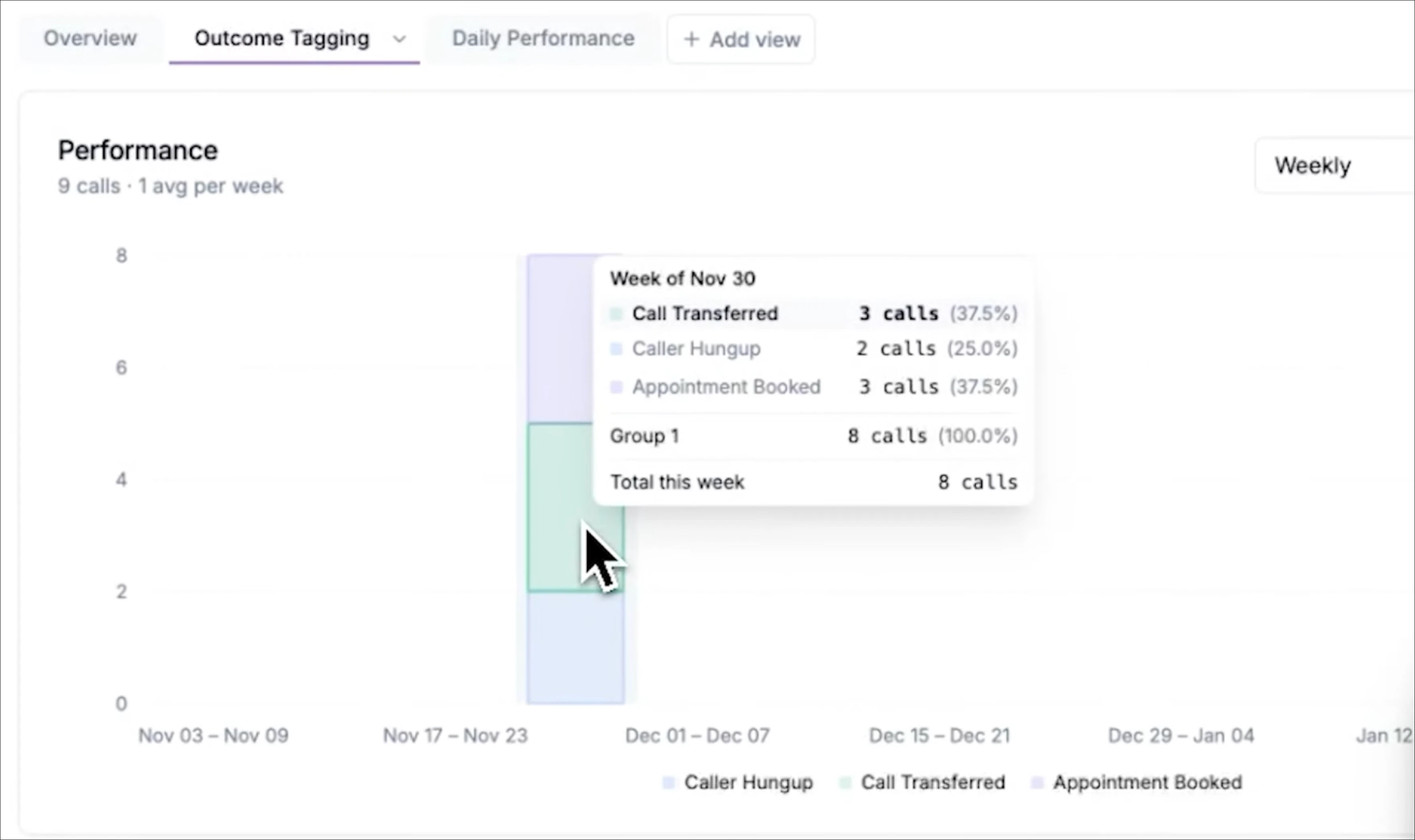
Once post-call outcomes are set using the API, webhook, or integration, they automatically appear in the performance page, where you can track, compare, and analyze results over time. To open the performance page: The charts and metrics will update automatically to include any post-call outcomes that were assigned. Every time a call outcome is updated (for example,"Sold" or "Appointment Completed"), that outcome becomes a trackable category in your analytics.
You can view:
- When outcomes occurred (by day or week)
- How frequently each outcome occurs
- How outcomes compare to total calls
- How outcomes trend over time
Groups
Grouping allows you to compare specific outcomes against total calls or other outcomes. This is one of the most powerful ways to measure conversion rates. To configure grouping:
The chart will now show each group separately. This allows you to clearly see:
- How many calls resulted in appointments
- How that compares to total calls
- The percentage conversion rate over time
Absolute and Percentage Views
You can change how the data is displayed using the chart controls.- Absolute mode shows raw counts (for example, 25 appointments)
- Percentage mode shows conversion rates (for example, 25%)
View the Actual Calls Behind an Outcome
You can click any outcome, group, or chart segment to see the specific calls that produced that result. For example: Clicking the appointment booked group will open a list showing: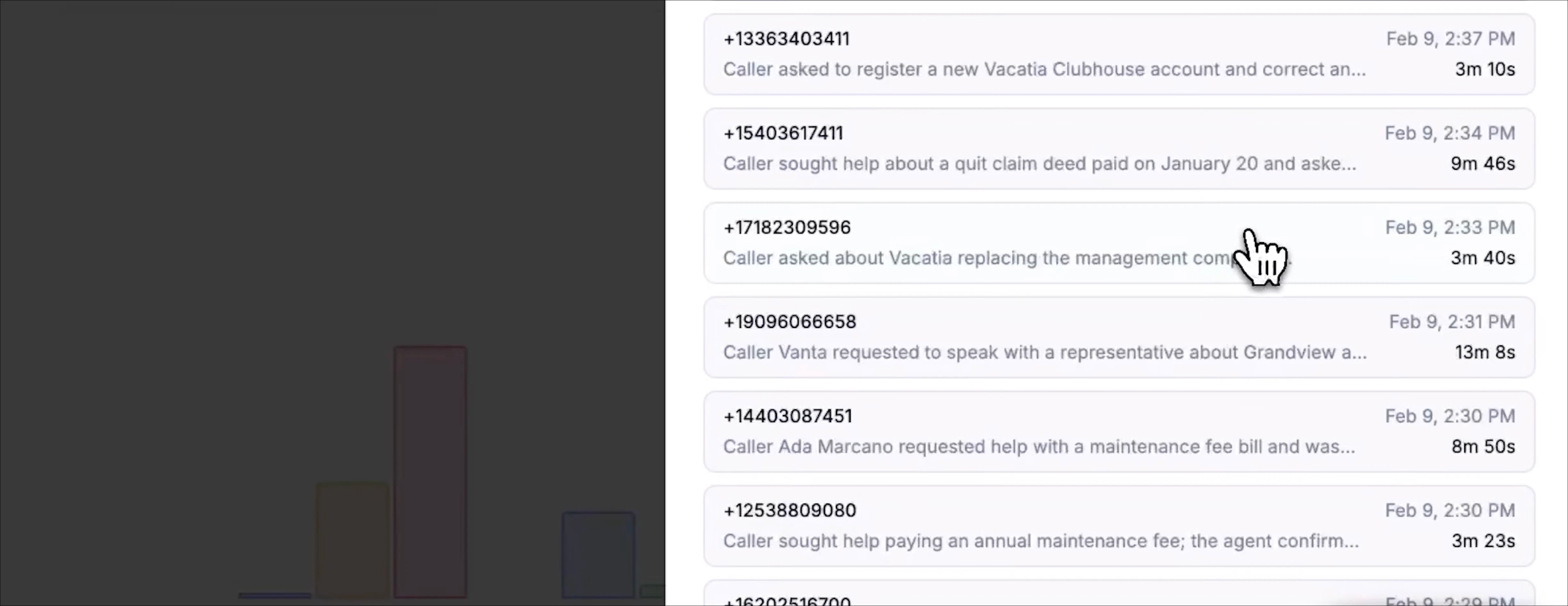
- Listen to successful calls
- Identify patterns in high-performing conversations
- See exactly what the AI did correctly
- Identify areas for improvement