
How Call Topics Work
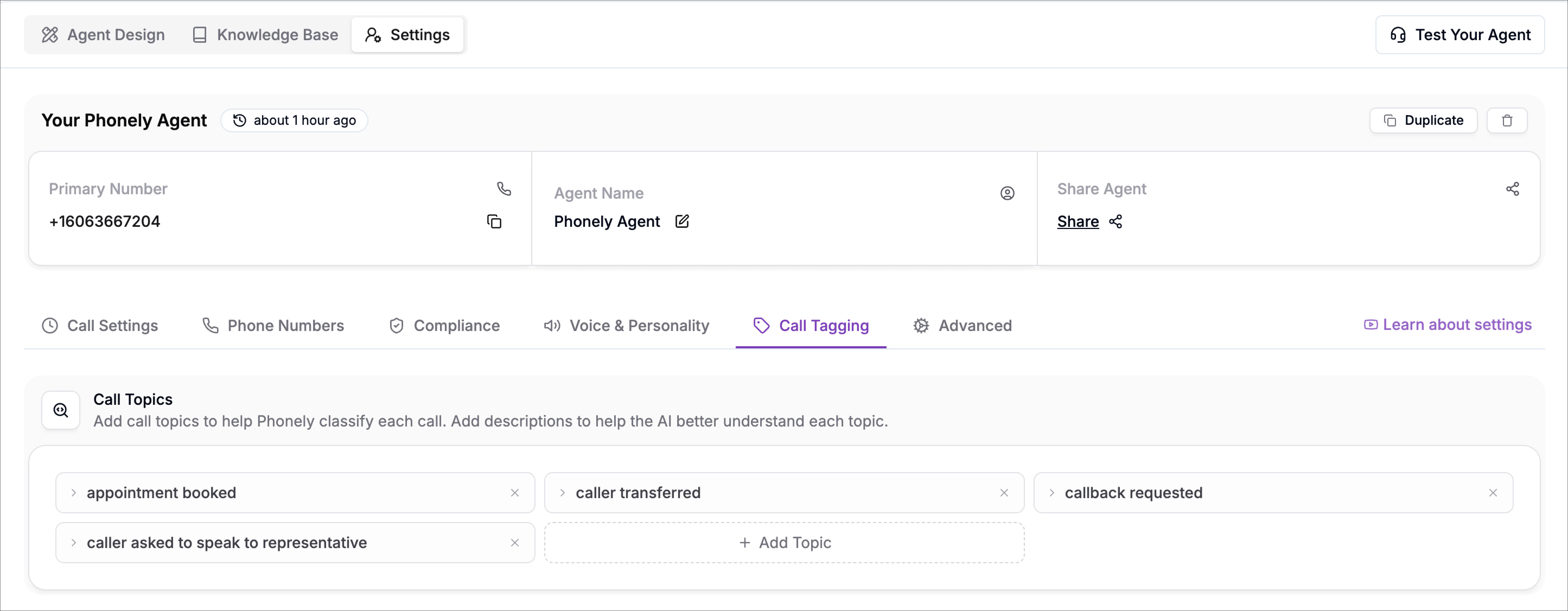
You define a list of possible topics that represent common reasons or situations during calls. These can be broad, such as caller transferred or caller asked to speak to a representative, or highly specific, such as caller hung up after agent asked for age. When a call finishes, Phonely reviews the entire transcript and selects the single topic that best matches what actually occurred during the conversation.Add a Call Topics
Call topics define the types of conversations your agent handles. These help Phonely identify caller intent and organize analytics around meaningful categories.- Go to agent design > settings from the left sidebar.
- Go to the call tagging tab
- Locate the call topics section
- Click add topic. Enter the topic name and the topic description. The description is where you define what happens for the call to be
- Click add
Viewing Call Topics in Call History
The call history and analytics dashboard provides a centralized view of all calls. Each call entry includes the duration, call outcome, sentiment, call topic, and timestamp. To review or edit detected topics:- From the sidebar menu find the call section.
- Click call history
- Click on any call
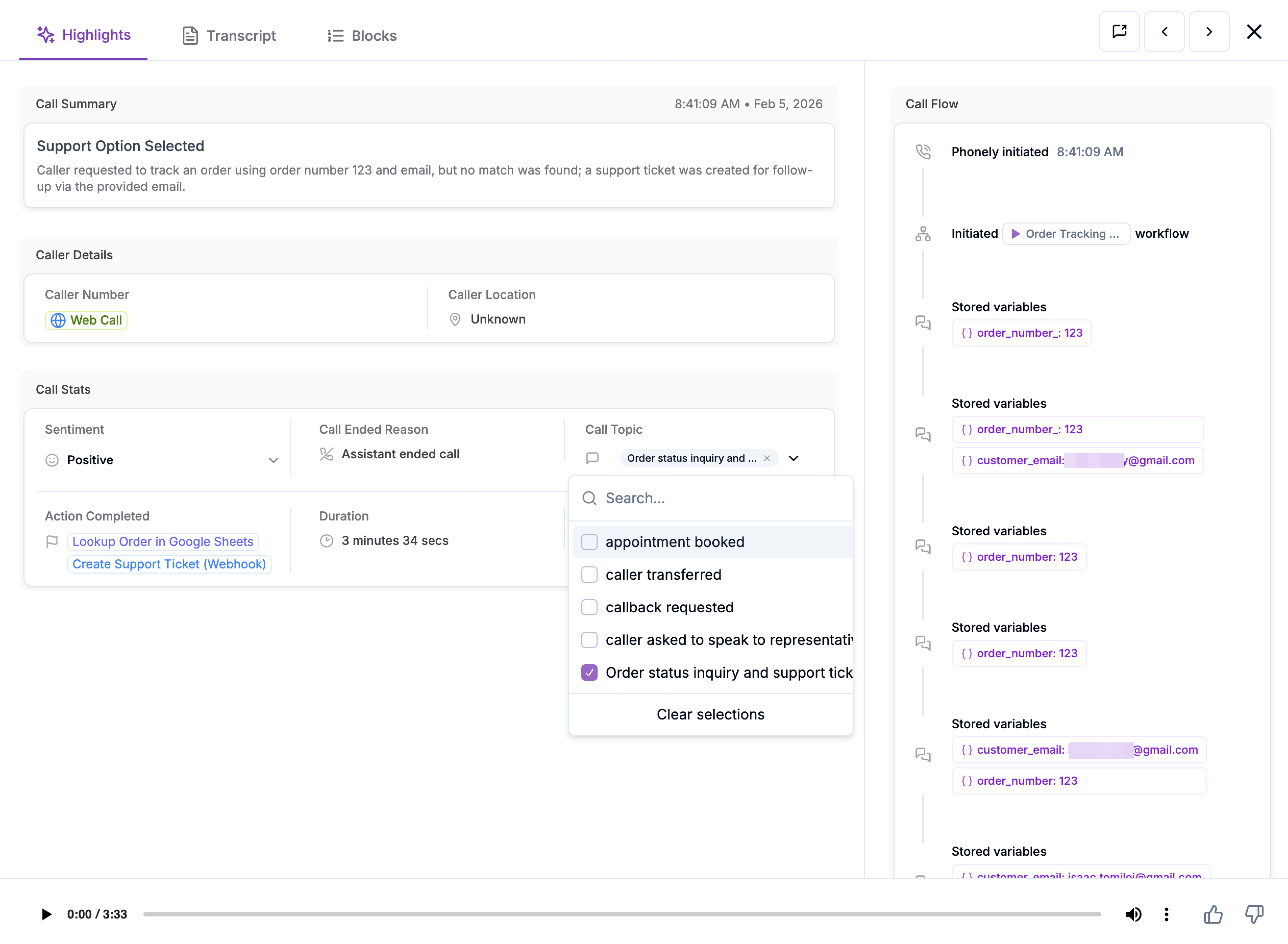
- View automatically detected topics
- Select relevant topics
- Unselect irrelevant topics
Call Topics in the Performance Page
Call topics become most valuable when used inside the performance page, where they allow you to isolate, compare, and analyze specific types of conversations. Instead of looking at all calls as a single dataset, call topics let you break down performance based on why customers are calling. This enables you to answer important operational questions such as:- How many callers are booking appointments?
- How many callers are requesting callbacks?
- How often callers request a human representative?
- Which types of calls convert successfully?
- Filtering - isolate specific conversations
- Grouping - compare different types of conversations side-by-side
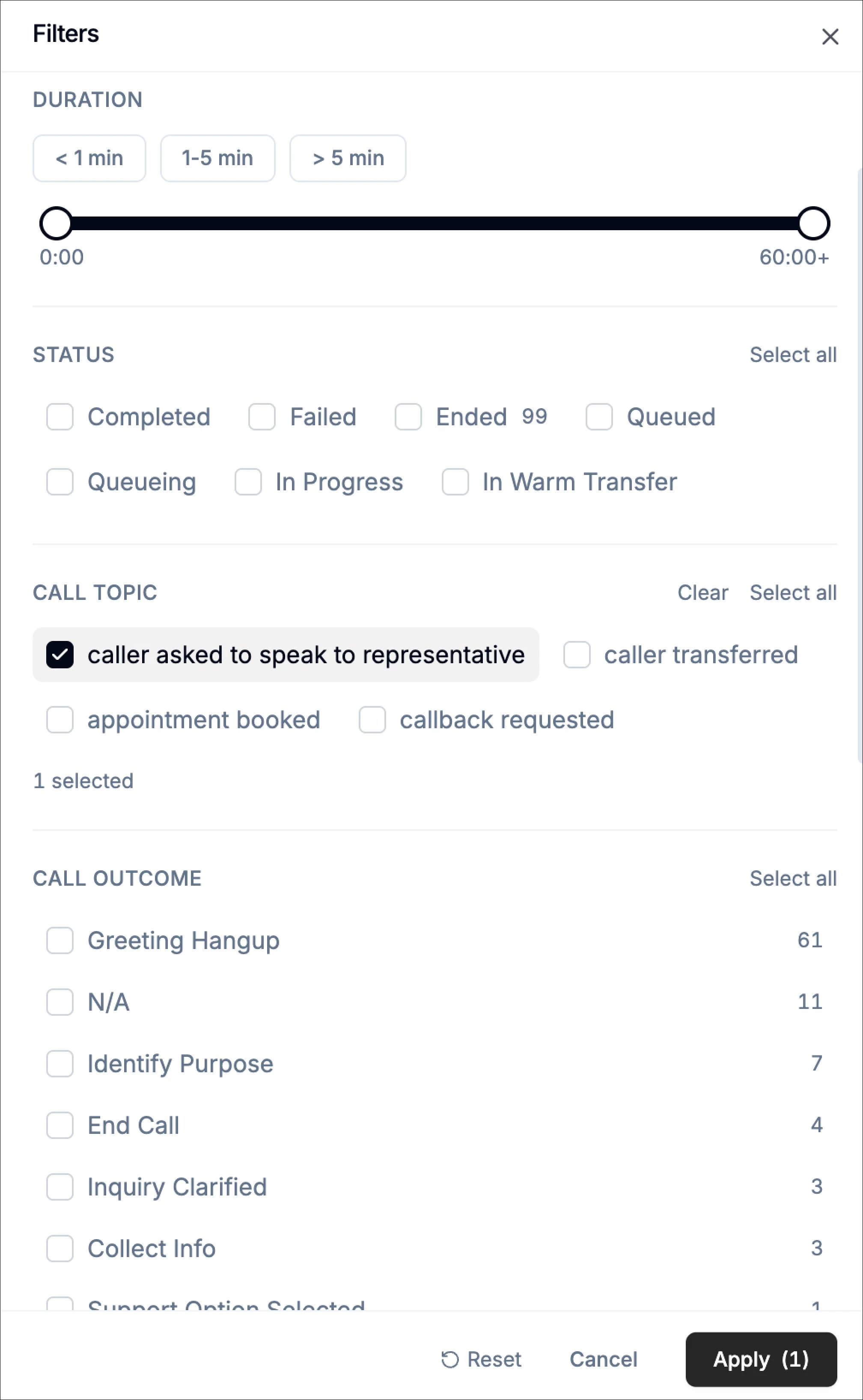
Filtering Calls by Topic
Filtering allows you to narrow the performance dashboard to show only calls that match specific topics. All data shown will reflect only calls that match the selected topic.- Go to the analytics section and click performance
- Click the filter button
- Locate the call topic section
- Select one or more topics (for example: appointment booked)
- Click apply
Call Topics in Groups
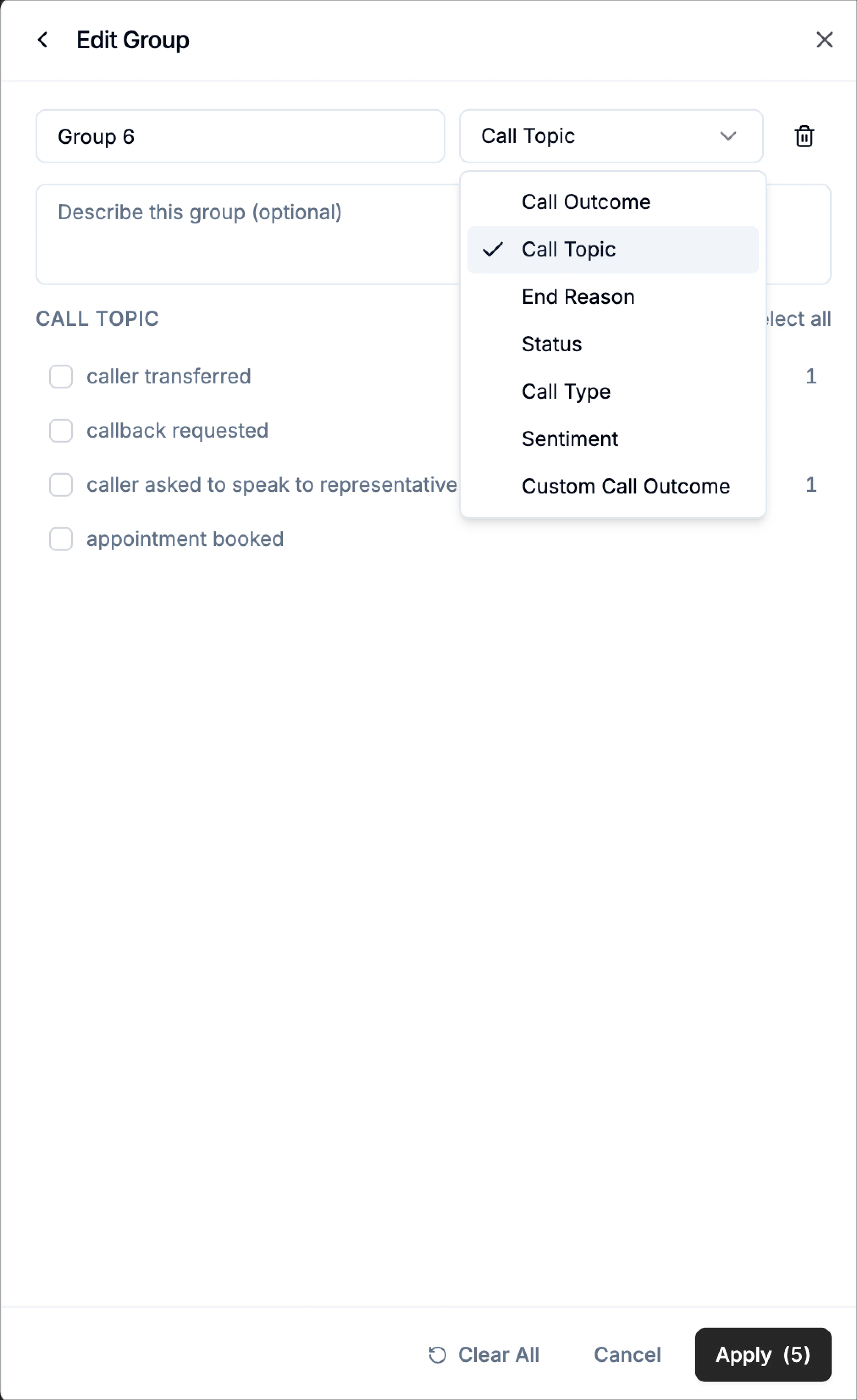
Groups allow you to compare multiple topics at the same time. This is one of the most powerful analysis tools in the performance page. When you create groups using call topics, the performance page splits your data into separate segments.This allows direct visual comparison between different types of calls.- Go to the analytics section and click performance
- Click group
- Click add group
- In the grouping dropdown, select call topic
- Choose the topics you want to include
- Click apply
Call Topics in Call History
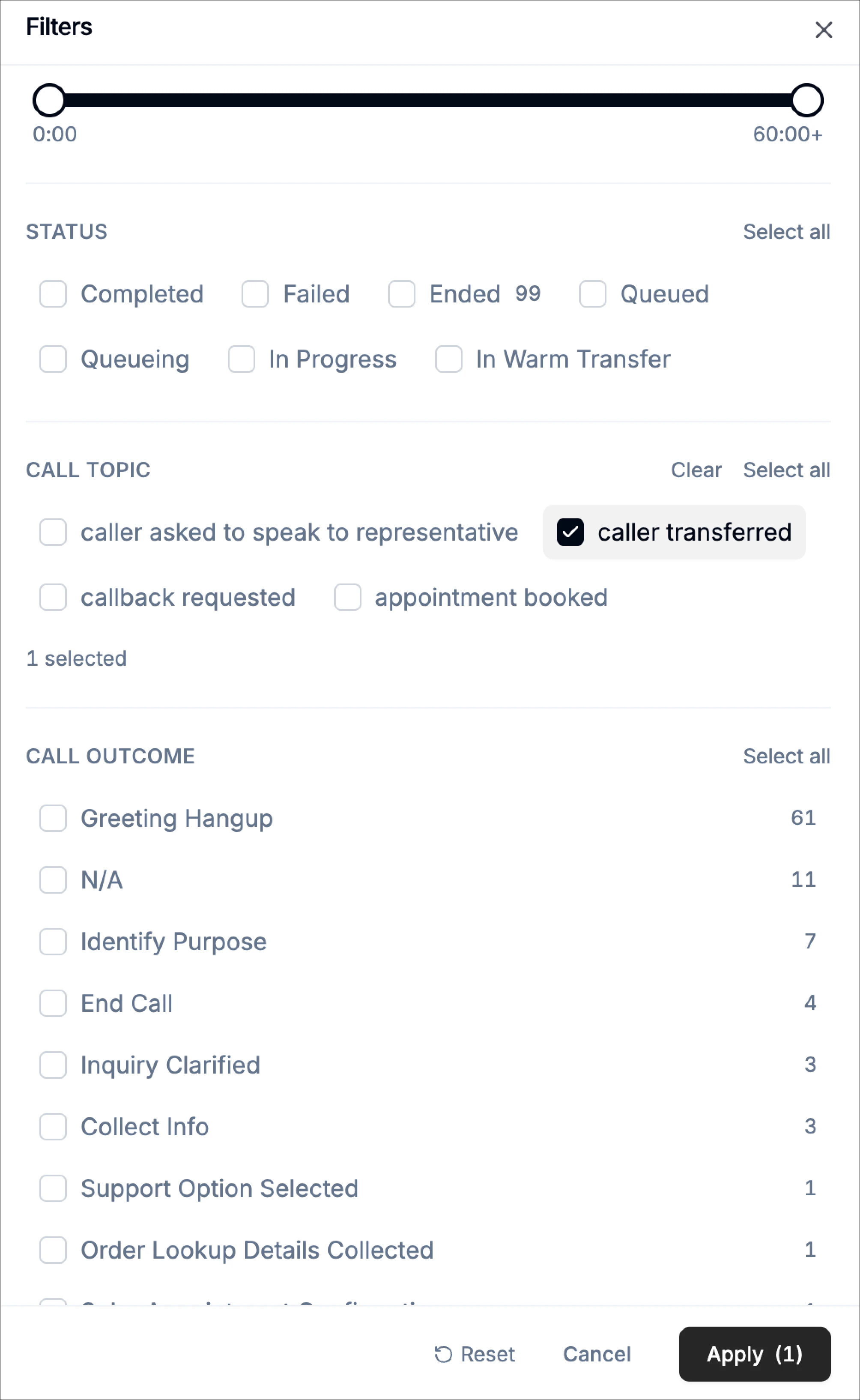
Call history allows you to filter calls based on call topics. This helps you quickly find conversations related to a specific caller intent, such as appointment bookings, support requests, or general inquiries. To filter calls by topic:- Go to call history
- Click the filter button
- Locate the call topic section
- Select one or more topics
- Click apply