

- Measure customer satisfaction
- Identify frustrated or unhappy callers
- Monitor agent performance
- Track customer experience trends over time
- Improve workflows and conversation design
Define setiments
Phonely lets you customize the meaning of each sentiment so the AI tags calls based on your standards (not a generic definition).- Go to agent design > settings from the left sidebar.
- Open the call tagging tab
- Scroll to sentiment definitions
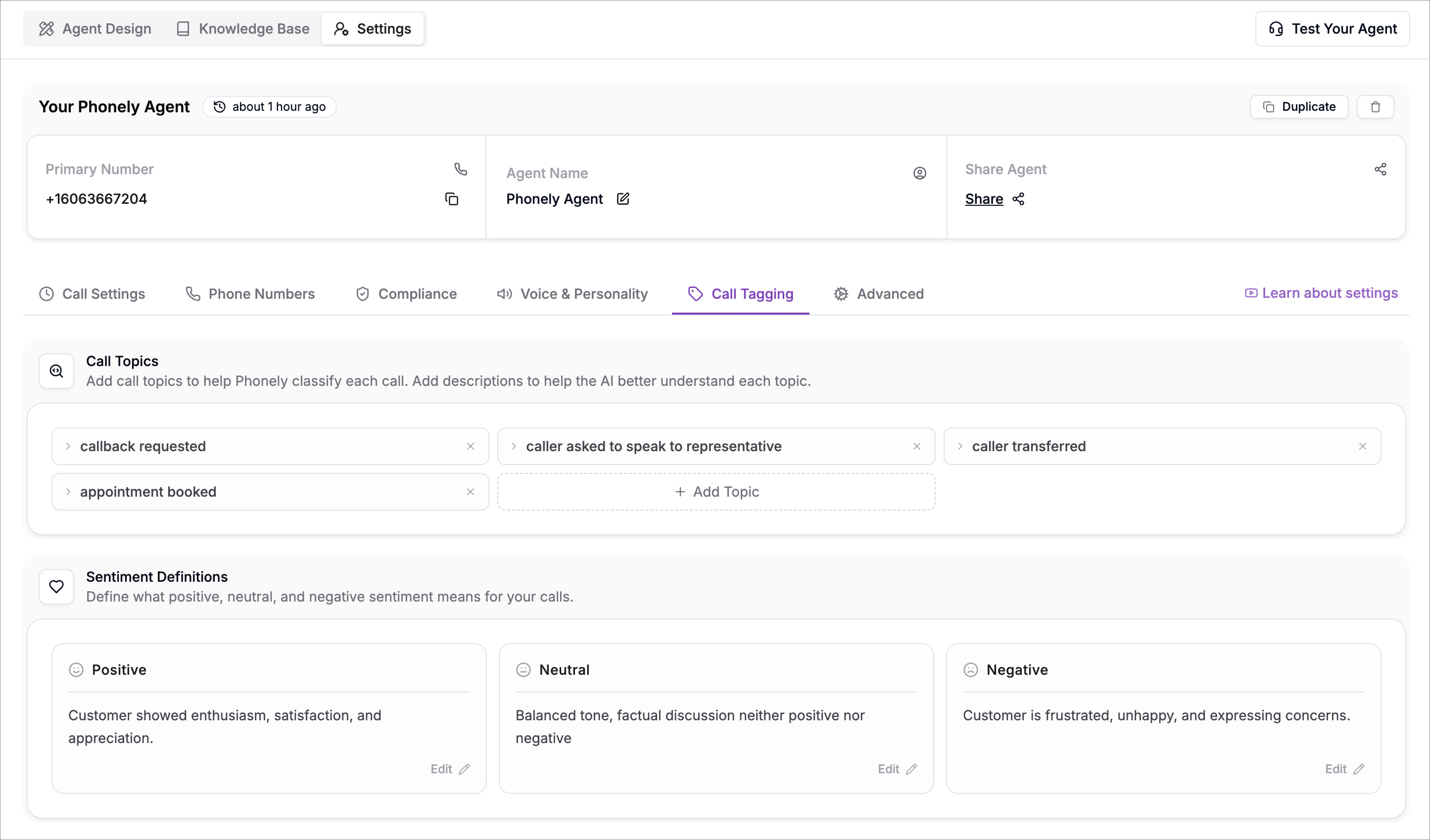
- Click Edit
- Replace the text with your definition
Example definitions
Positive- Caller expresses satisfaction, gratitude, excitement, or confirms success.
- Examples: “That’s perfect”, “Thanks for helping”, “Yes, book it”, “Great, that worked.”
- Caller is calm and informational, with no clear satisfaction or frustration.
- Examples: asking questions, providing details, confirming order info.
- Caller is frustrated, angry, impatient, or repeatedly expresses dissatisfaction.
- Examples: “This is ridiculous”, “I’ve called before”, “You’re not helping”, raised tone or complaints.
Sentiments in Call History
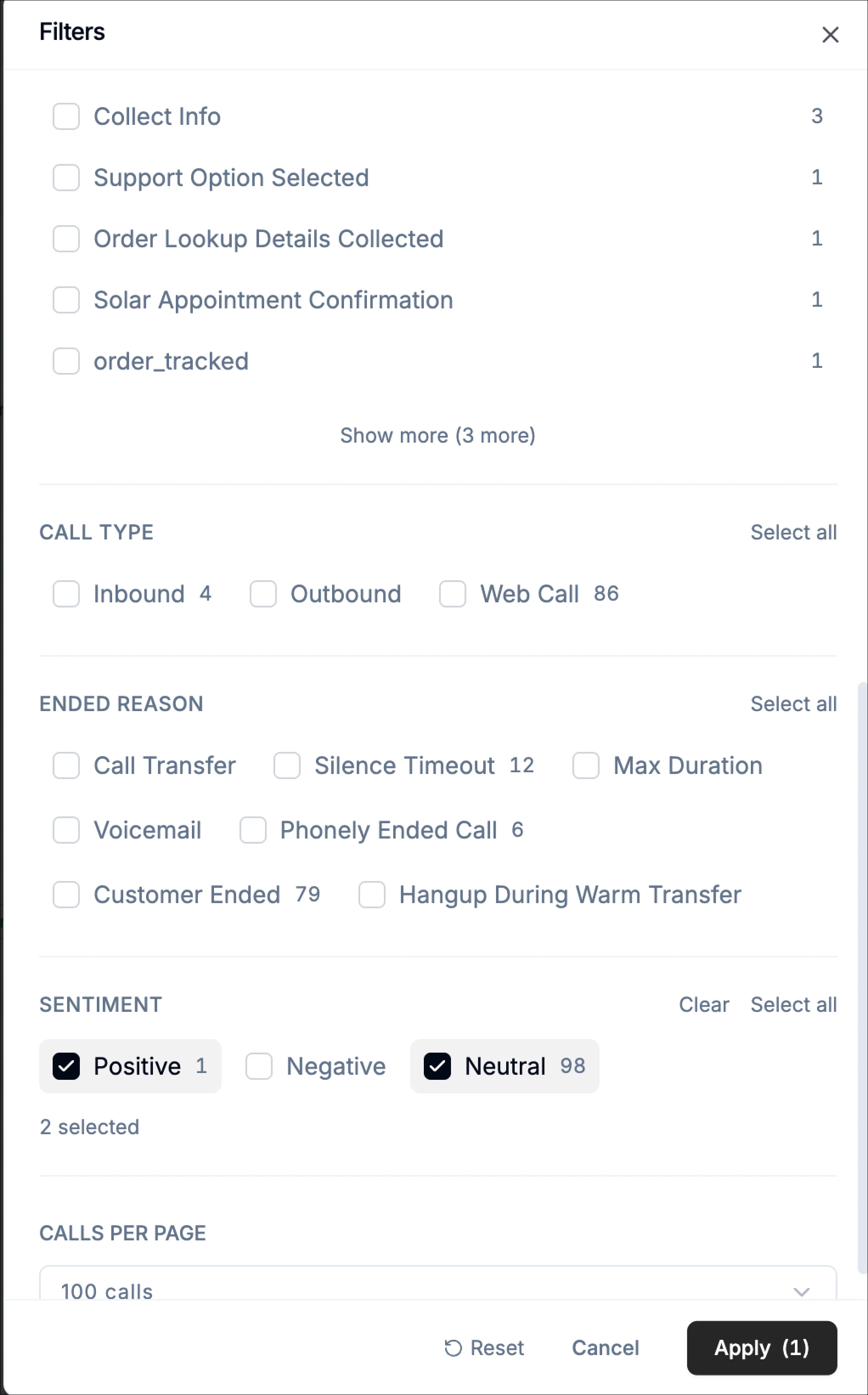
During each conversation, Phonely analyzes the caller’s intent and applies relevant sentiments automatically. Once the call ends, these sentiments become part of the call record and appear in:- Go to the call history page and click the filters button.
- Select sentiment
- Choose positive, neutral, or negative
- Click apply
Sentiments in Performance
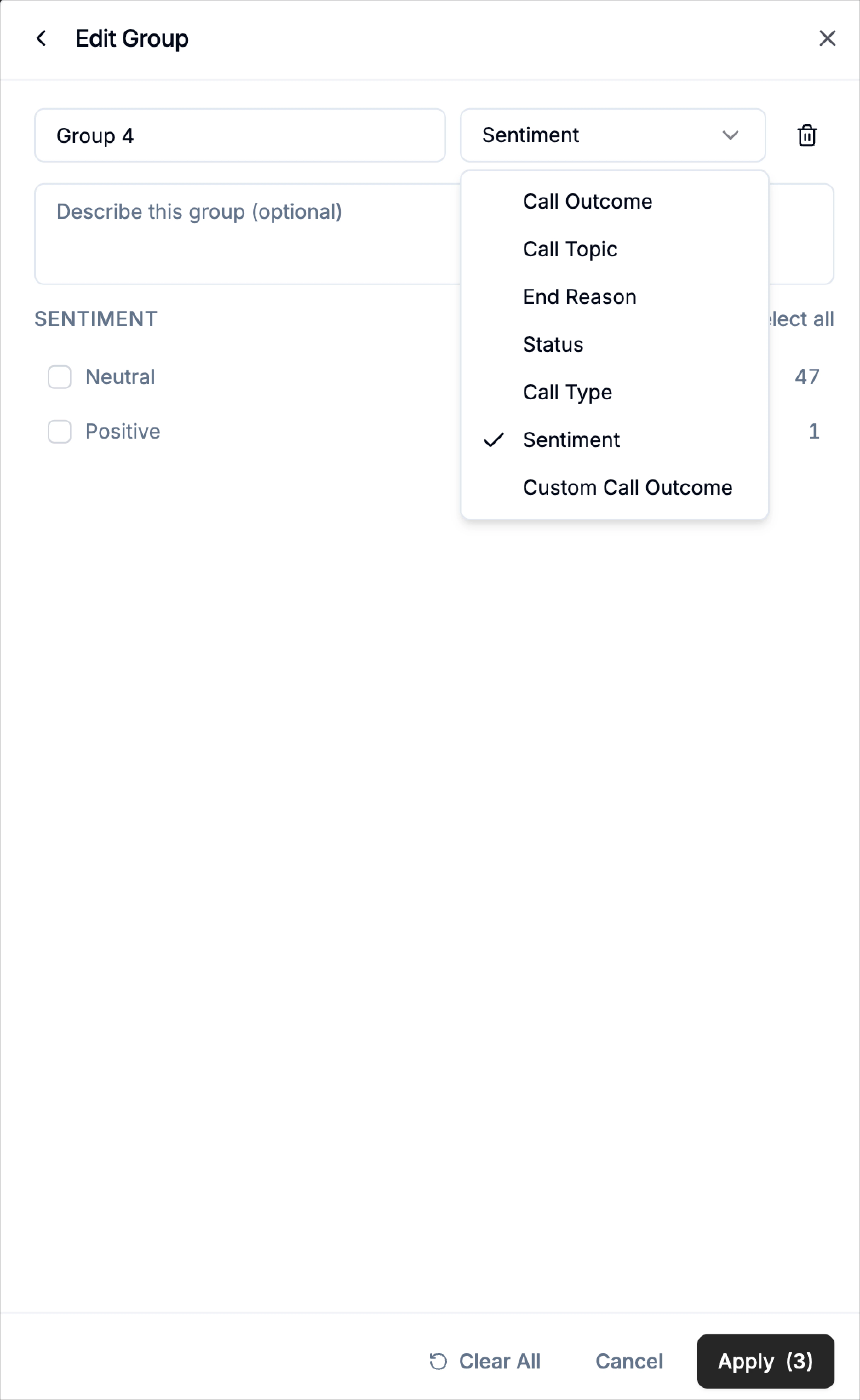
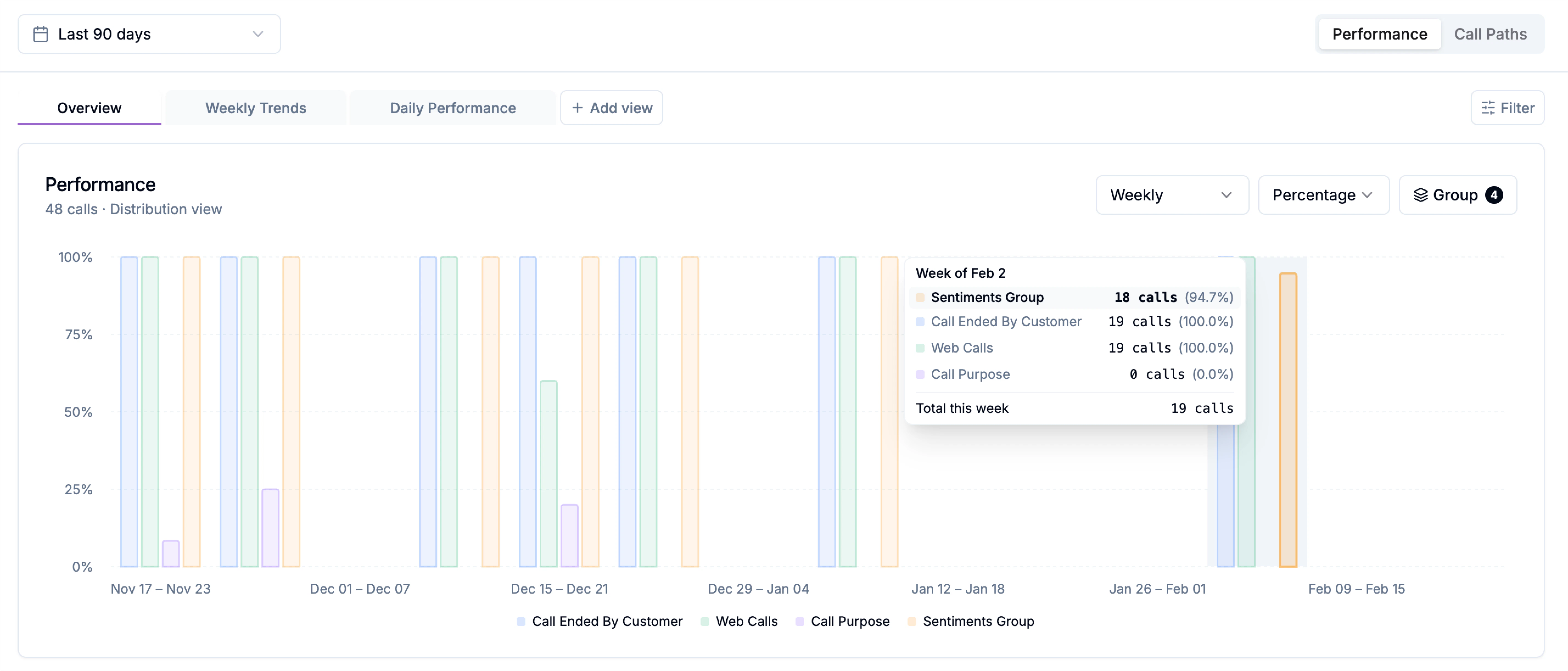
Use this when you want side-by-side comparisons (instead of filtering everything down to one sentiment).- On the performance page, click group
- Click the add group button
- Set the grouping type as sentiment
- Select the sentiment definitions you want to compare (for example, positive and neutral)
- Click apply
Filtering Calls by Sentiment in Call History
You can also filter calls based on sentiment. This allows you to review conversations based on how the caller felt during the interaction. To filter calls by sentiment:- Go to Call History
- Click Filter
- Locate the Sentiment filter
- Select one or more sentiment categories
- Click Apply
- Go to Call History
- Click Filter
- Locate the Sentiment filter
- Select one or more sentiment categories
- Click Apply