
What Are Flows?
A Flow is a visual representation of a live phone conversation. It controls the entire lifecycle of a call from greeting to resolution. Flows are made of several core elements:1. Blocks
Blocks are the individual steps in your workflow. Each block performs one clear function, such as:- Speaking to the caller (Talk)
- Collecting information (Collect).
- Applying logic or conditions (Filter, Time Filter)
- Calling an external system (API Request, Google Sheets, Code)
- Transferring or ending a call (Transfer Flow, End Call)
- Sending messages (Email, SMS)
- Running post-call actions.
2. Connections & Exit Conditions
Connections determine how the conversation moves forward. An edge can represent:- A simple continuation (always go next)
- A conditional path (only proceed if a condition is met)
- An exit outcome (success, failure, escalation, etc)
Exit condition tooltips
When you hover over a connection handle or edge, Phonely now displays a tooltip explaining which condition is applied, why the edge exists or what will cause the call to take that path.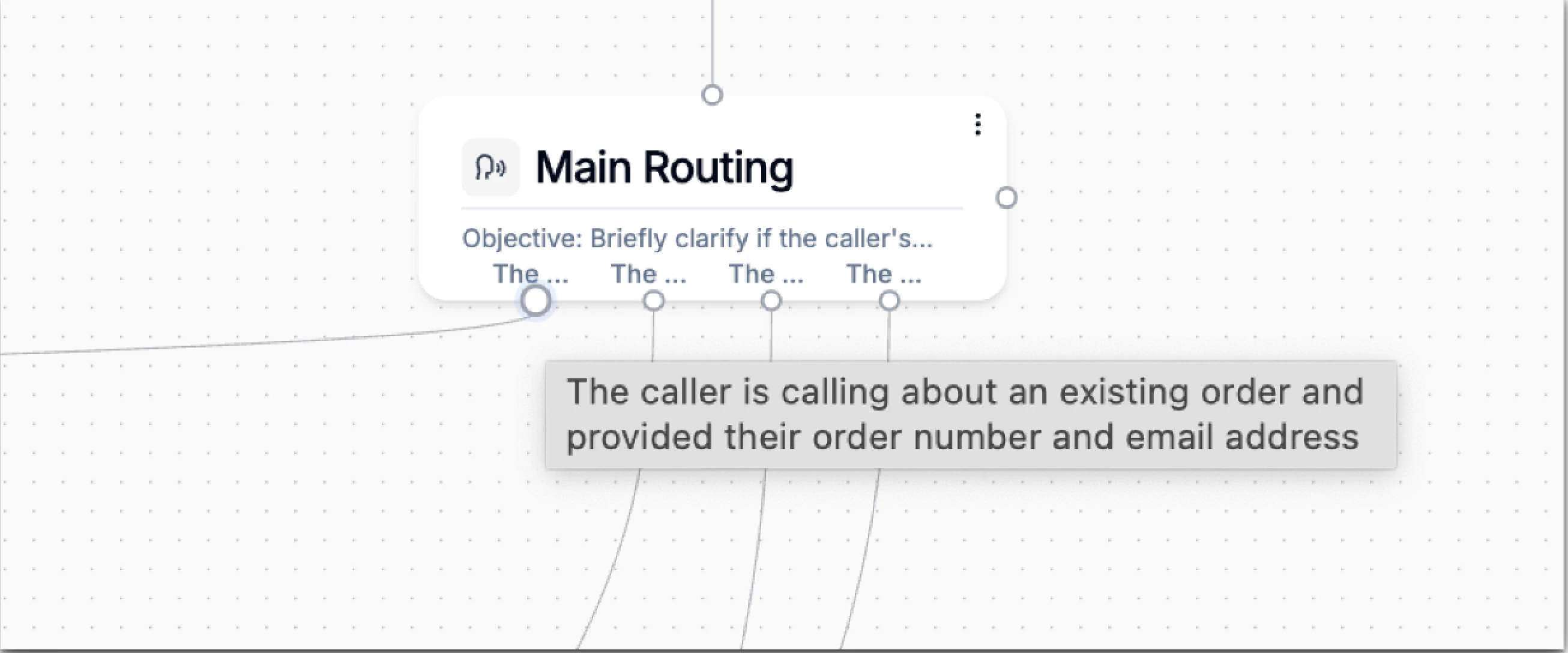
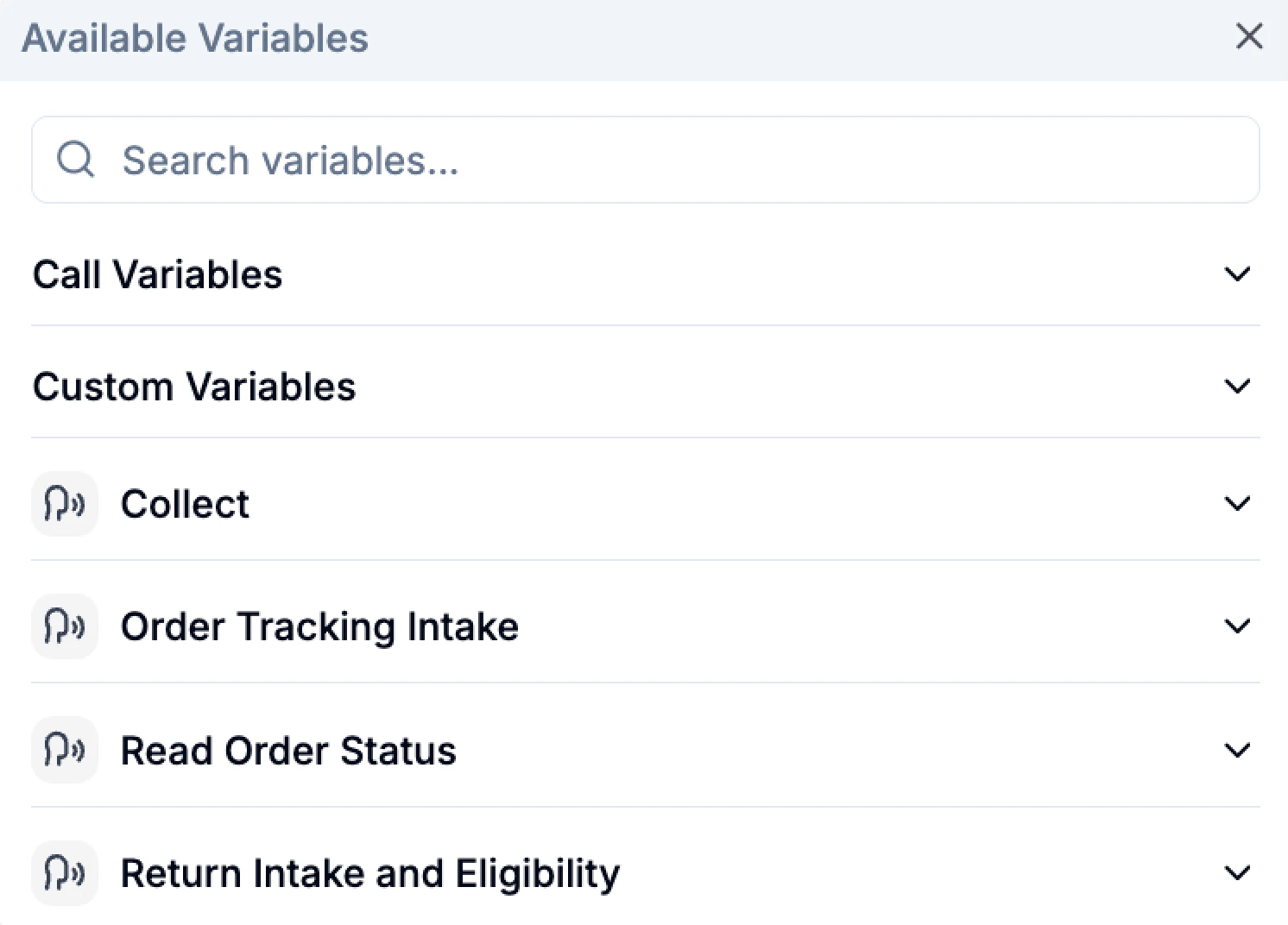
3. Variables
Variables store information during the call, such as:- Caller-provided inputs.
- API responses.
- System-generated data (timestamp, outcomes, etc.)
Canvas Controls
Phonely includes several canvas tools to help you navigate and organize large workflows. You’ll find tools for:- Add new blocks
- Using sticky notes
- Organizing blocks
- Replacing invalid variables
- Undo/Redo actions
- Viewing your change history
Create a Flow
New blocks are auto-positioned to keep the layout readable.
The canvas is where you visually design and manage your workflow.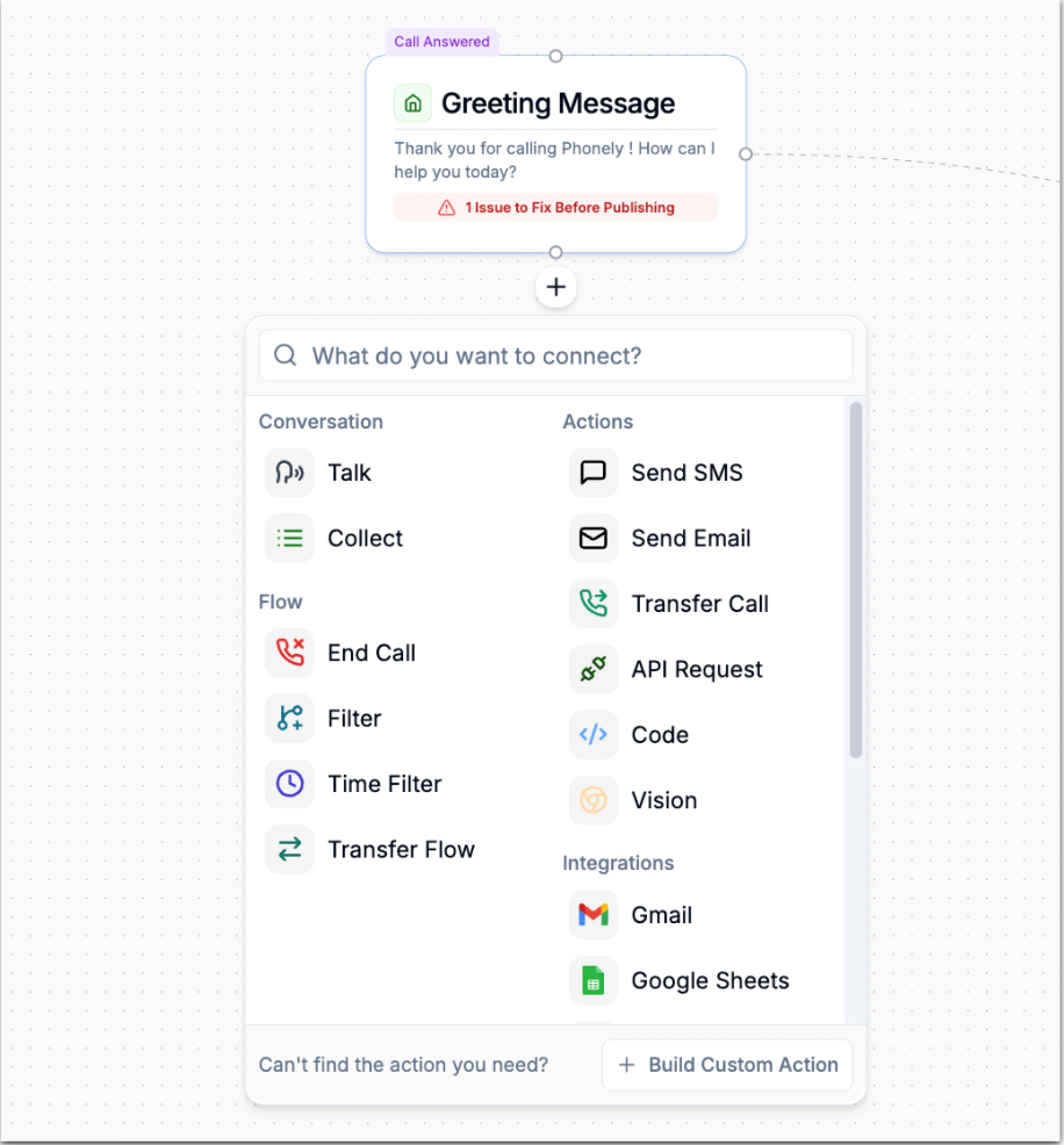
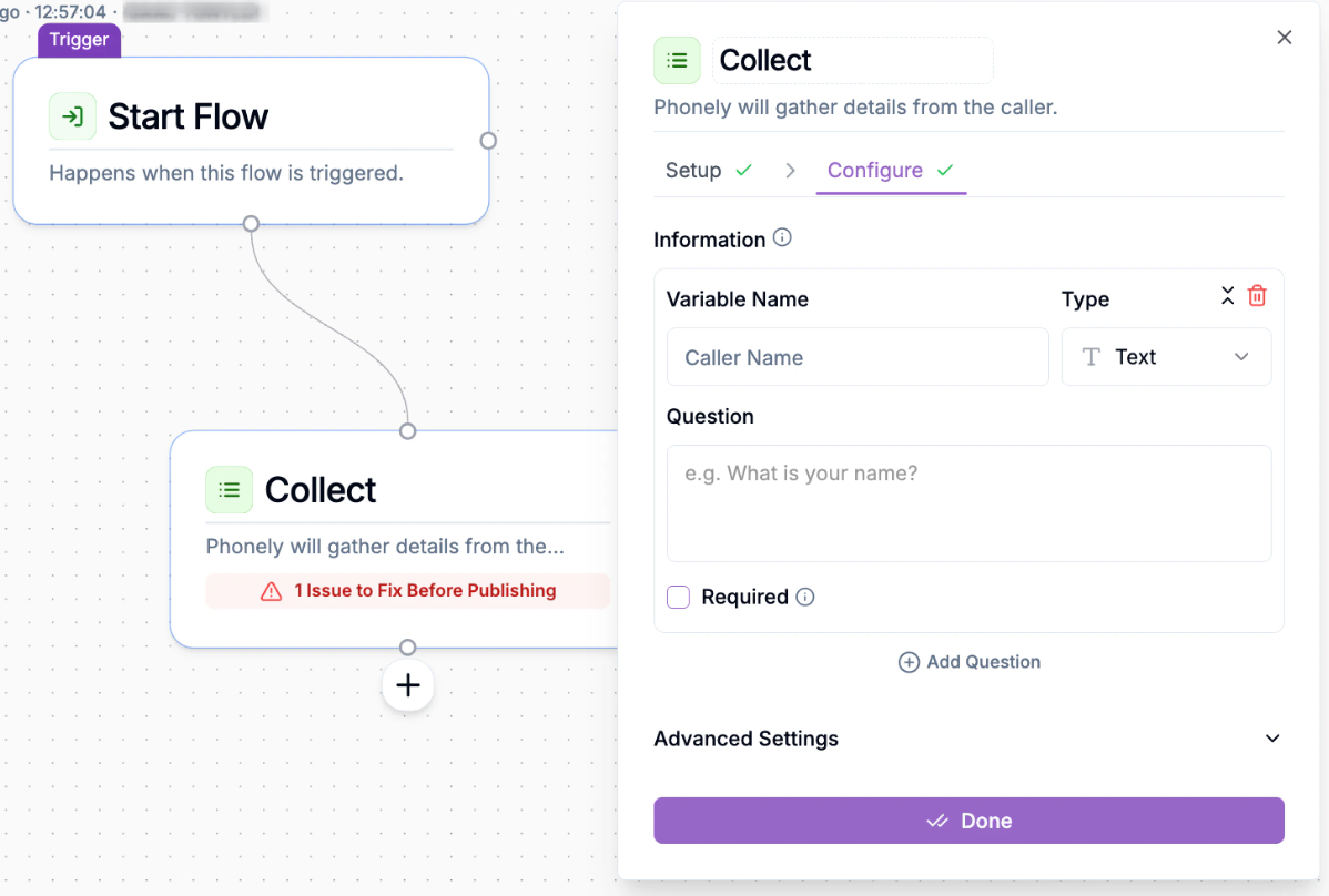
- Connect blocks. You can change connections between blocks by hovering over an edge clicking the X button, and then place your cursor over the output node of one block and drag the edge to connect to the input node of another block.
- Save your changes. Every save creates a new version you can review or revert.
- Publish when ready. Publishing makes the version live for real callers.
Copy & Paste Across Tabs
You can now select one or multiple blocks. Copy them and then paste them into another open Phonely tab. This allows you to reuse logic across flows and build variations without starting from scratch.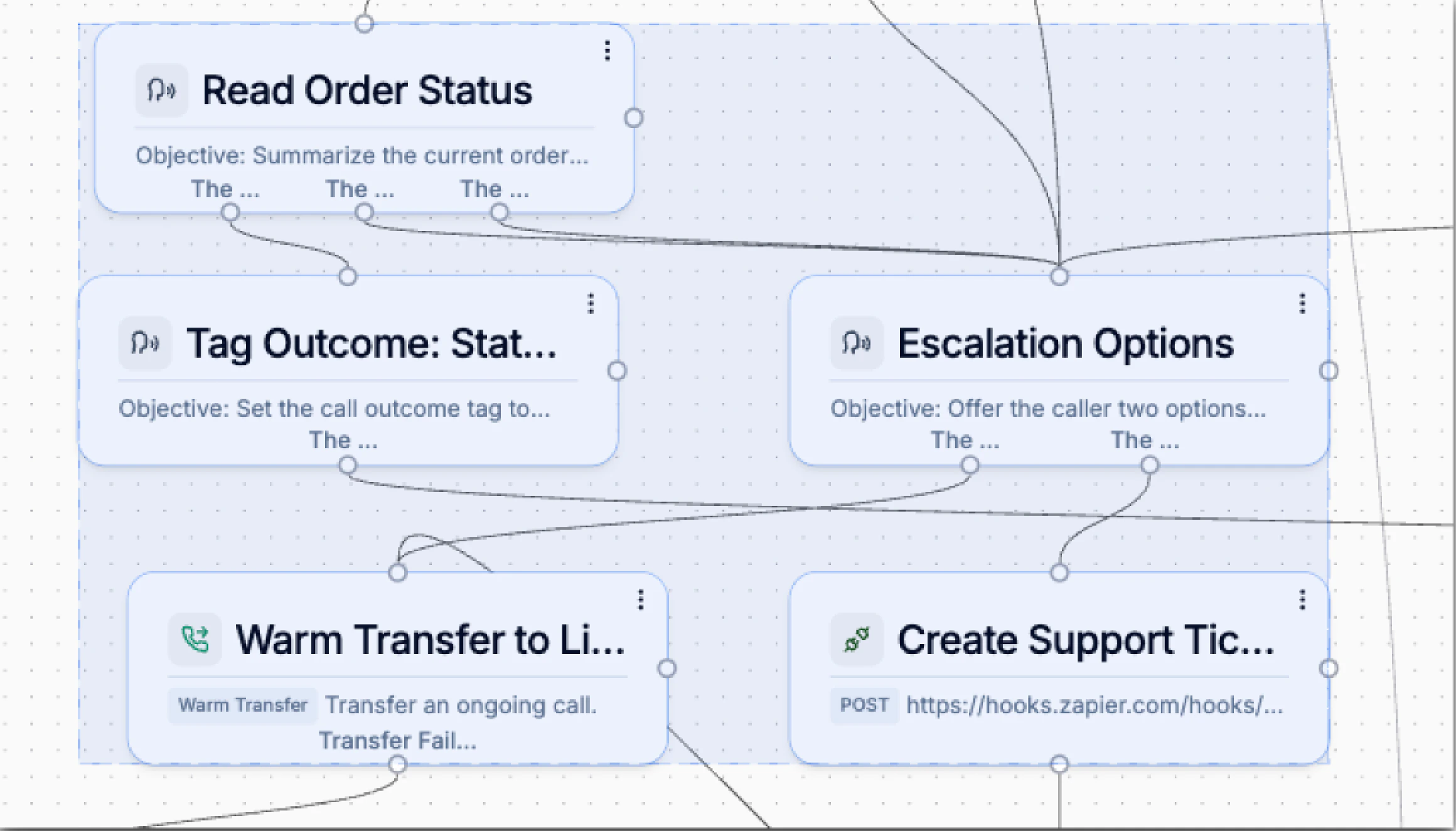
Configure Blocks
Click any block to open its configuration panel. Each block type exposes only the settings that matter, for example:- Talk blocks → prompts, voice settings
- Collect blocks → questions, variables, validation
- API blocks → endpoints, headers, payloads, mappings
Save, Version, and Publish
Every save creates a new version. Versions can be reviewed or reverted. When publishing, review the version details and confirm the version you want to make live for callers.Call variables
What are call variables?
What are call variables?
Variables are dynamic containers that persist for the duration of the call - like the agent’s working memory.
How to set variables
How to set variables
Use Collect blocks for caller input, API Request blocks for external data, or add custom variables via the Variable modal.
How to access variables
How to access variables
Reference by name with @variable_name or select from the Variable modal. Use them in prompts, conditions, and API payloads.
Variable types
Variables in Phonely can store different types of data. Choose the appropriate type when collecting information from callers or storing data from API responses.| Type | Data Type | Description |
|---|---|---|
| text | string | General text |
| number | number | Numeric values |
| date | ISO date | Dates in ISO format |
| time | HH:mm | Times in 24-hour format |
| name | string | Caller names |
string | Email addresses | |
| phone | string | Phone numbers |
| url | string | Web addresses |
| address | object | Street, city, region, postal code, country |
| currency | number | Monetary values |
| percentage | number | Percent values |
| duration | string | Time spans |
| custom | any | User-defined schema |
Call outcome tagging
Outcome tags enable analytics, reporting, and automations after the call ends.
Automatic
System applies defaults like
completed, failed, lead_qualified, appointment_schedule, or transferred.CustomSet custom tags in End Call blocks for downstream workflows.ConditionalApply tags only when conditions on variables are met.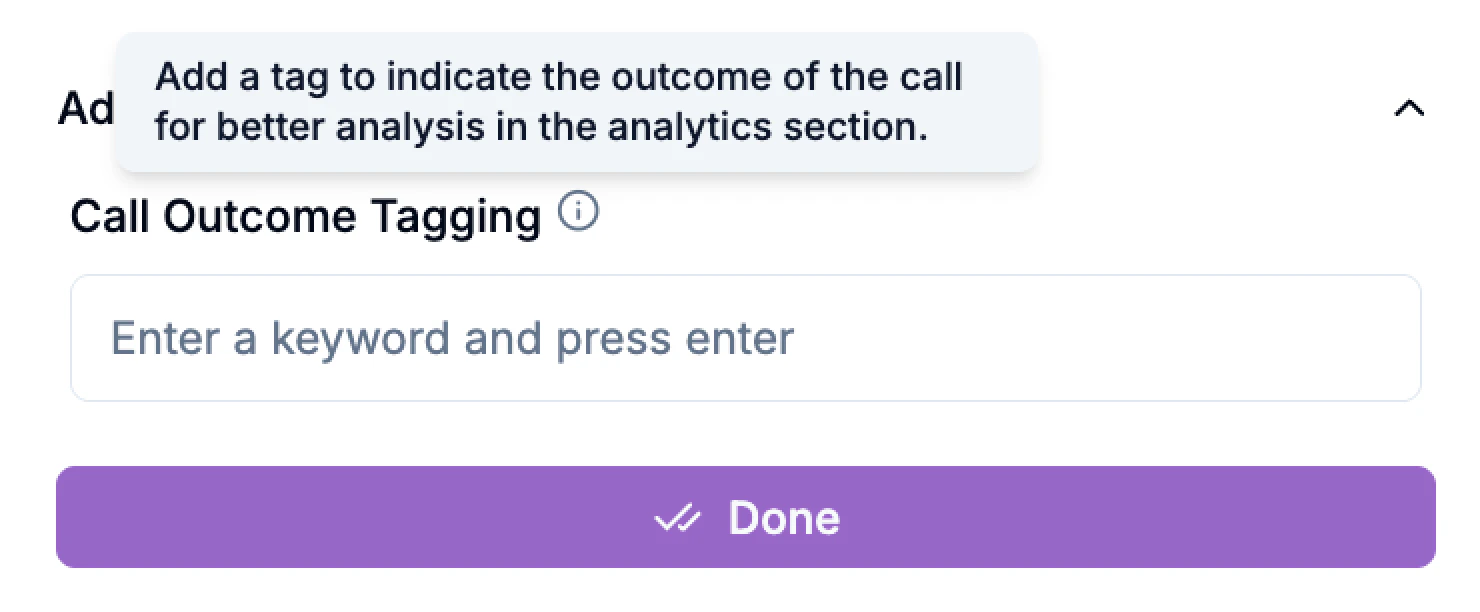
Testing & best practices
- Simulation
- Live
Design guidelines
Conversation design
Conversation design
Keep prompts natural and concise, offer clear next steps, plan for interruptions, and confirm critical data before proceeding.
Technical hygiene
Technical hygiene
Test all branches, add fallback edges, watch performance metrics, and keep external dependencies resilient.
Variable management
Variable management
Use descriptive names, validate inputs, handle missing data gracefully, and scrub sensitive data when not needed.
Troubleshooting guide
Flow not responding
Flow not responding
Verify block connections, confirm required variables are set, test blocks individually, and check API auth/endpoints.
Poor call quality
Poor call quality
Review Talk block voice settings, try alternate voices, adjust rate and pauses, and check variable interpolation.
Transfer failures
Transfer failures
Confirm destination numbers/agents, test fallbacks, and verify timing and availability windows.
Variable issues
Variable issues
Check spelling/case, ensure values are set before use, validate data types, and test prompts using variables.
API integration problems
API integration problems
Test endpoints in isolation, verify credentials and headers, confirm request/response schemas, and watch rate limits/timeouts.